ChindaLLM 4B with n8n
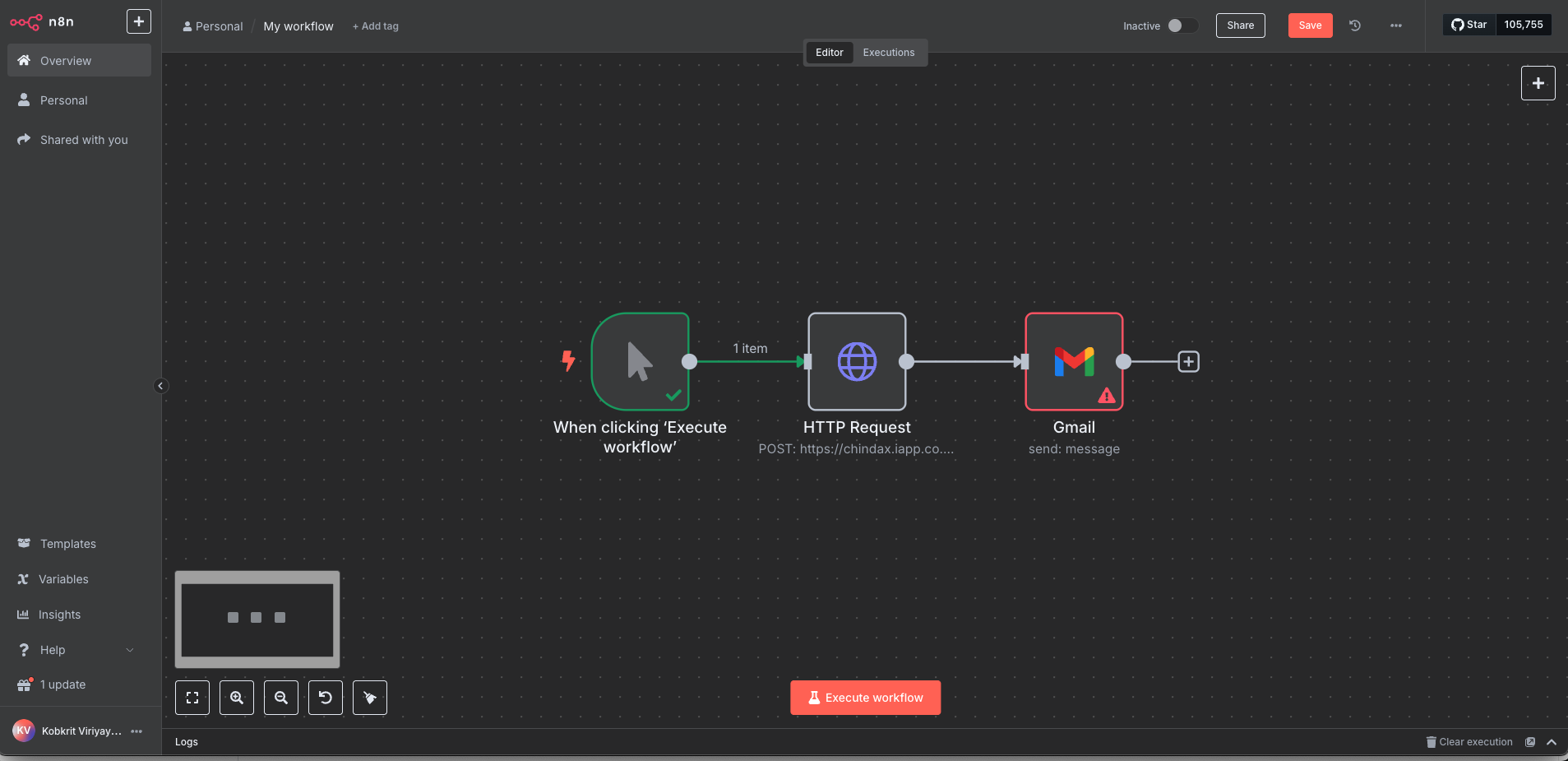
At the end you will have an n8n workflow that sends a Thai prompt to ChindaLLM 4B and passes the answer to the next node.
You need Node.js or Docker for n8n, and either Ollama to run the model yourself or a ChindaX account for the hosted API.
1. Start n8n
- npx
- npm
- Docker
npx n8n
npm install n8n -g
n8n start
docker run -it --rm \
  --name n8n \
  -p 5678:5678 \
  -v ~/.n8n:/home/node/.n8n \
  n8nio/n8n
Open http://localhost:5678, create a new workflow and add a Manual Trigger node.
2. Get the model
- Ollama (your machine)
- ChindaX (hosted)
curl -fsSL https://ollama.com/install.sh | sh
ollama pull iapp/chinda-qwen3-4b
ollama serve
The API listens on http://localhost:11434.
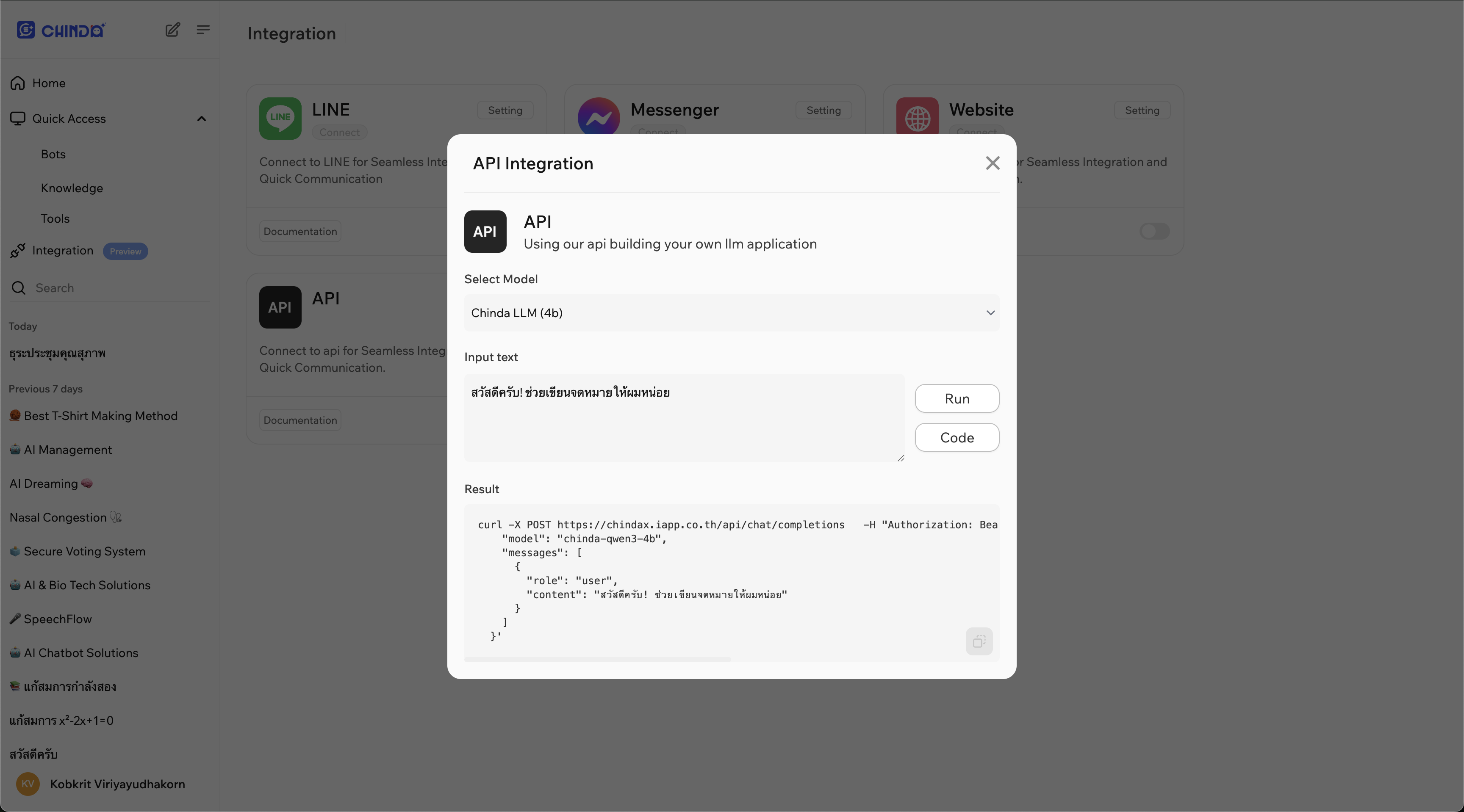
Sign in at chindax.iapp.co.th, open Integration, click Setting on the API card, and copy the URL and the Bearer token.
3. Add an HTTP Request node
Add an HTTP Request node after the trigger, set Method to POST, turn on Send Body and set Specify Body to Using JSON, then fill in the fields for your model.
- Ollama
- ChindaX
URL: http://localhost:11434/api/generate
Body:
{
  "model": "iapp/chinda-qwen3-4b",
  "prompt": "สวัสดีครับ ช่วยอธิบายเกี่ยวกับปัญญาประดิษฐ์ให้ฟังหน่อย",
  "stream": false
}
URL: https://chindax.iapp.co.th/api/chat/completions
Turn on Send Headers, set Specify Headers to Using JSON and enter:
{
  "Content-Type": "application/json",
  "Authorization": "Bearer sk-********************"
}
Body:
{
  "model": "chinda-qwen3-4b",
  "messages": [
    { "role": "user", "content": "สวัสดีครับ ช่วยเขียนจดหมายให้ผมหน่อย" }
  ]
}
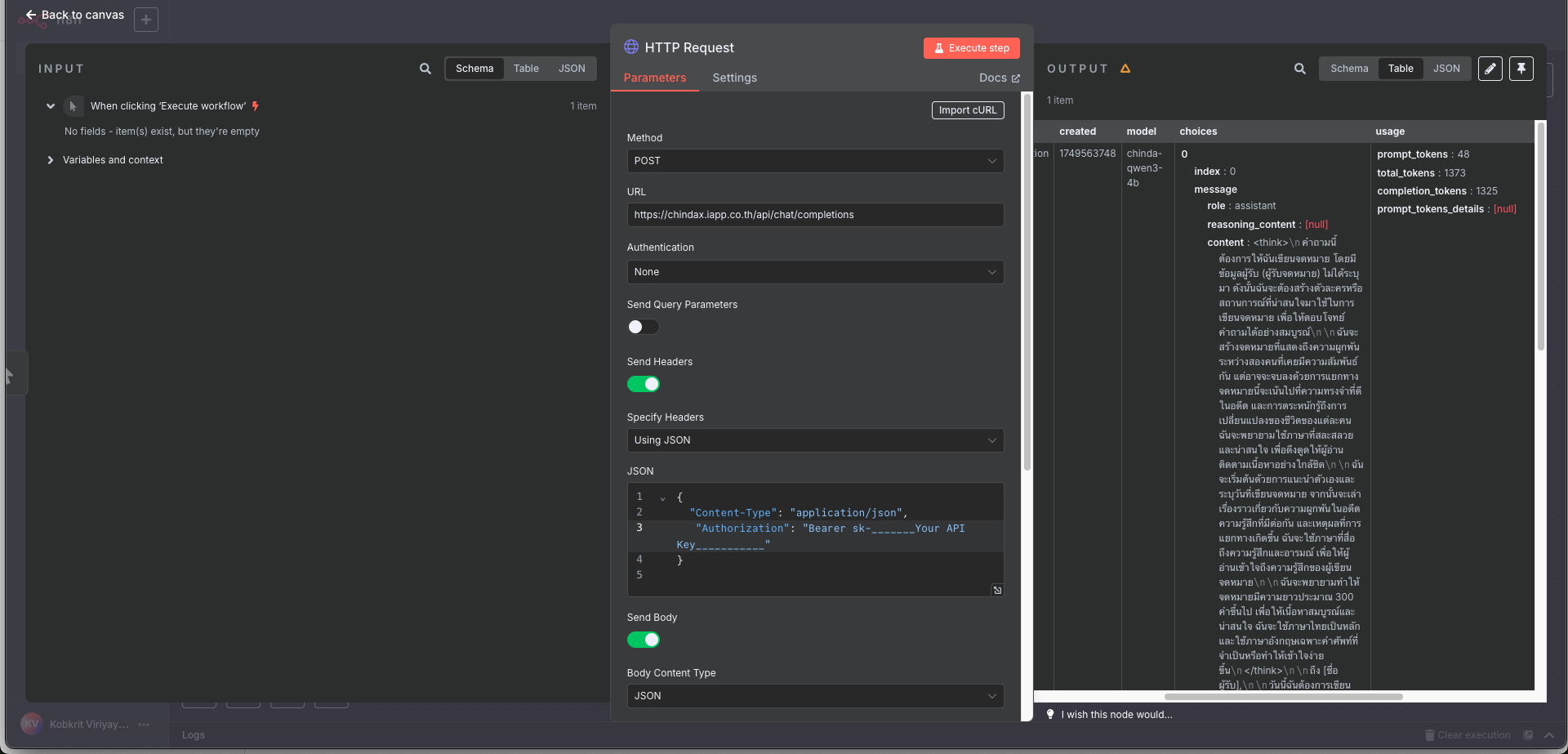
Click Execute step; the answer appears in the Output panel.
4. Pass the answer on
Map {{ $json.response }} (Ollama) or {{ $json.choices[0].message.content }} (ChindaX) into the next node, such as Set or Gmail.
Troubleshooting
Error: connect ECONNREFUSED 127.0.0.1:11434: Ollama is not running; start it withollama serve. If n8n runs in Docker,localhostis the container rather than your machine, so start n8n with npx or npm, or use ChindaX.- The workflow times out: in the HTTP Request node, open Options, add Timeout and set it to 30000 (30 seconds) or more.
- The answer starts with
<think>: that is the model's reasoning. Remove everything up to and including</think>in a Set or Code node before you send it on.
The model's benchmarks and its Apache 2.0 licence are on the ChindaLLM 4B page; n8n is documented at docs.n8n.io.